
Activity reports
How to read employee activity reports with context
Understand activity percentages, app usage, and screenshots without confusing computer activity with outcomes. A practical guide for team managers.
Know what the report actually measures
Computer activity and completed work are different things. A report may show tracked time, keyboard and mouse activity levels, or application usage. Those signals describe parts of a work session; they do not independently establish the quality of a deliverable or the difficulty of a task.
Before reviewing a number, understand the collection settings and reporting period. Compare sessions with similar context, and check whether all relevant work was tracked. A partial day should not be interpreted as if it were a complete record.
Treat activity percentages as a starting point
Reading a specification, planning an approach, attending a call, and sketching on paper may produce little keyboard or mouse activity. Repetitive data entry may produce much more. A higher percentage does not automatically mean a more valuable contribution.
Consider an example: a developer spends an hour understanding a problem before making a short code change. The change resolves the task, even though much of the session involved reading. Review the outcome and task notes before drawing a conclusion from the activity pattern.
Interpret app and website usage in the task's context
The same website can serve different purposes. A video platform might be used for training, product research, or something unrelated to the assignment. An application name alone is not enough to distinguish those situations.
When a pattern raises a question, connect it to the project and ask for context. Focus on whether the work has what it needs to move forward. A useful conversation might uncover missing documentation, a slow review process, or a task that should be reassigned.
Use screenshots as limited supporting evidence
A screenshot captures a moment, not the full story of a session. It may help explain which work was open at that point, but it cannot establish everything that happened before or afterward. Avoid treating a single image as a summary of someone's day.
In ClareSight, screenshot capture and related controls depend on organization settings. Explain the enabled settings, access, and retention rules to the team. Review only what is relevant to the question you are trying to resolve, and use the available controls to fit your organization's needs.
Turn the review into a useful next action
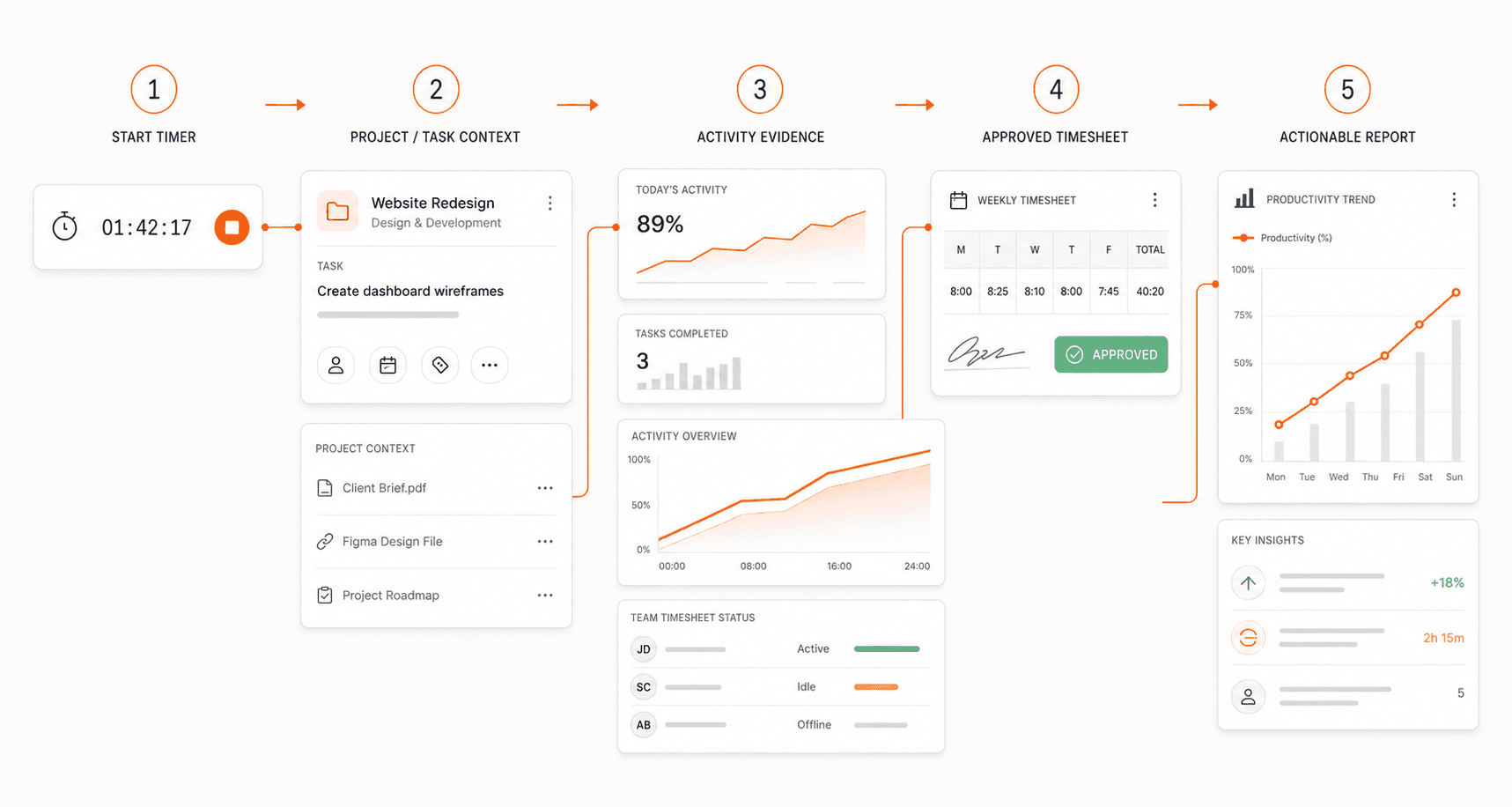
ClareSight connects activity evidence with time, projects, and reports. Read those elements together and check the relevant deliverable or task status. Standard tracking is tied to an active session, so untracked work may require additional explanation.
End the review with an action the team can understand: clarify a requirement, remove a blocker, or improve the way a session is documented. Avoid ranking people solely by computer activity. The useful result is better context for a decision, not simply a higher number on the next report.
Explore the workflow
See how ClareSight works, review the available features, or get the app.
← All articles